


WordPressのサイト移行(サーバー移転)を検討した際、多くの検索結果で推奨されているのが All‑in‑One WP Migration である。but、無料版では容量制限が存在し、ある程度成長したサイトでは途中でエラーとなるケースが少なくない。
Also、各レンタルサーバーが提供する「簡単移行ツール」も一見便利に見えるが、
- ファイル数が多い
- メディア容量が大きい
- プラグイン構成が複雑
といった条件が重なると、移行失敗やデータ欠損が発生することがある。
手作業でのFTP転送という選択肢も存在するが、数千〜数万ファイルを扱うWordPress環境では、1ファイルの欠損が致命的な不具合につながる。再現性・安全性の観点から、推奨できる方法ではない。
こうした背景を踏まえ、安定性と再現性を重視したサイト移行手段として有効なのが、バックアッププラグイン「UpdraftPlus」を利用した方法である。
UpdraftPlusとは?サイト移行に適している理由
UpdraftPlusは、WordPress向けバックアッププラグインとして世界的に利用されており、バックアップと復元を同一インターフェース上で完結できる点が大きな特徴である。
主な特徴とメリット
バックアップから復元までを管理画面で完結できる
多くのバックアップ系プラグインでは、復元時にデータベース操作やファイル配置を手動で行う必要がある。
UpdraftPlusでは、管理画面上の操作のみで復元処理が実行されるため、環境差異によるトラブルが発生しにくい。
外部ストレージへのバックアップ保存が可能
バックアップデータを同一サーバー内に保存した場合、
- サーバー障害
- ハッキング
- 契約解約
といった事象により、バックアップ自体が失われるリスクがある。
UpdraftPlusは以下の外部ストレージと連携可能である。
- Google Drive
- Dropbox
- Amazon S3 など
これにより、バックアップの冗長性を確保できる。
柔軟なスケジュール設定
バックアップ頻度は、
- 数時間おき
- 毎日
- 毎週
Etc、サイト運用状況に応じて設定可能である。
無料版でも実用十分
通常のサイト移行やバックアップ用途であれば、有料版を使用しなくても問題なく運用できる。
UpdraftPlusがバックアップするデータ内容
UpdraftPlusは、WordPressサイトを完全に再現するため、以下のデータをバックアップ対象とする。
- データベース(記事、固定ページ、設定情報)(db)
- プラグイン(plugins)
- テーマ(themes)
- アップロードファイル(画像・動画)(uploads)
- その他 wp-content 配下の関連ファイル(others)
- *必須プラグイン(mu-plugins)が、作成されることもあり
UpdraftPlusが有効なケース
- 更新後にサイト表示が崩れた場合
- 誤操作によるデータ削除
- マルウェア感染・改ざん
- サーバー移転(サイト移行)
UpdraftPlusを使ったサーバー移転手順
以下は、UpdraftPlusを利用した一般的なWordPressサイト移行手順である。
ステップ1:旧サーバーでのバックアップ作成
First、現在のサイトの「完全なコピー」を作成する。
UpdraftPlusの設定画面を開く
WordPressの管理画面(ダッシュボード)にログインし、左側のメニューから以下を選択。
- 設定 > UpdraftPlus バックアップ
画面上部に「現在のステータス」「設定」「既存のバックアップ」などのタブが並んでいるのを確認する。
「今すぐバックアップ」を実行する
「現在のステータス」タブにある、大きな青いボタン「今すぐバックアップ」をクリックする。
クリックすると、小さな設定ウィンドウ(ポップアップ)が表示される。ここで以下の3つの項目にチェックが入っていることを確認。
- バックアップにデータベースを含める(記事や設定データ)
- バックアップ内のすべてのファイルを含める(画像、theme、プラグイン)
- このバックアップをリモートストレージに送信する(※Google Driveなど外部保存先を設定済みの場合のみ)
確認ができたら、右下の「今すぐバックアップ」ボタンをもう一度クリックする。
進捗を確認する
バックアップが始まると、青いプログレスバー(進捗バー)が表示される。
- サイトの容量(画像の多さなど)によりますが、通常は数分〜10分程度で完了。
- 「バックアップは成功し、完了しました」というメッセージが出れば成功。
データの確認とダウンロード(移転に必須)
バックアップが終わったら、画面を少し下にスクロールして「既存のバックアップ」という項目を確認。今作成したバックアップが日付とともに表示されている。
サーバー移転のために自分のパソコンへ保存するには、以下の操作を行う。
1. 全てのボタンをクリックする 「バックアップデータ」の欄にある、以下のボタンを一つずつクリック。
- データベース(db)
- プラグイン(plugins)
- テーマ(themes)
- アップロード(uploads)
- その他(others)
- *必須プラグイン(mu-plugins)が、作成されることもある
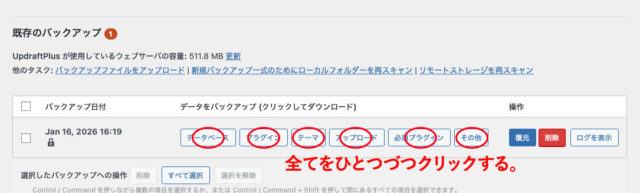
2. パソコンに保存する ボタンを押すと準備が始まり、少し待つと「お使いのコンピュータにダウンロード」というボタンが現れる。 これをすべて行い、自分のパソコンの分かりやすい場所に保存する。
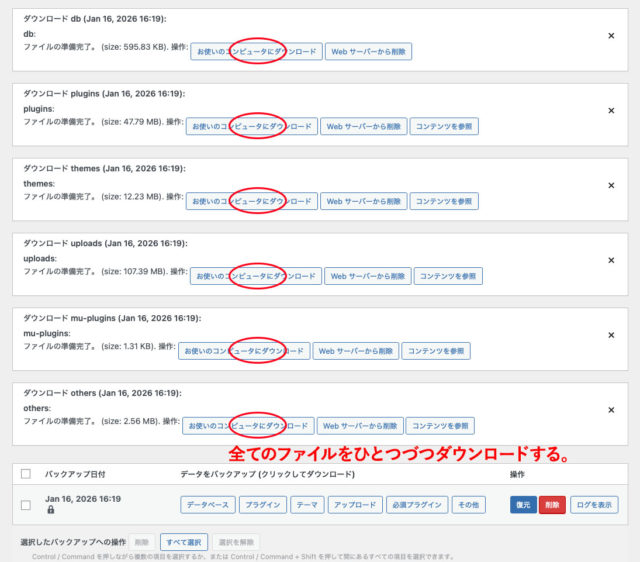
3. プラグインや、アップロードファイルが大きな場合は、分割したファイルを作成してくれる。
💡 失敗しないためのポイント
- 「ダウンロード」を忘れずに: サーバー移転の場合、新サーバーへデータを手動で渡す必要があるため、PCへのダウンロードは必須作業。
- ファイル名を変えない: ダウンロードしたファイル(zip形式など)の名前は、UpdraftPlusが識別するための特別な名前になっている。名前を変更せずにそのまま保管する。ダウンロード時に解凍されてしまった場合は、ファイルをzip形式にしておく。
- 圧縮ファイルをダウンロードした際に自動解凍され、その後あらためて圧縮し直したファイルがエラーになる場合があります。
このようなトラブルを避けるためには、使用しているブラウザの設定で「ダウンロード時に自動解凍しない」ように変更してください。
自動解凍を無効にしておけば、オリジナルの圧縮ファイルのまま保存できます。
ブラウザごとの具体的な設定方法については、お使いのブラウザ名とあわせて検索し、確認してください。
ステップ2:新サーバー側の準備
- 新サーバーにWordPressを新規インストール
- UpdraftPlusをインストールし有効化
初期状態のWordPressで問題ない。
ステップ3:バックアップの復元
- バックアップファイルのアップロード
UpdraftPlus設定画面より「バックアップファイルをアップロード」を選択し、旧サーバーで取得したすべてのバックアップファイルをアップロードする。
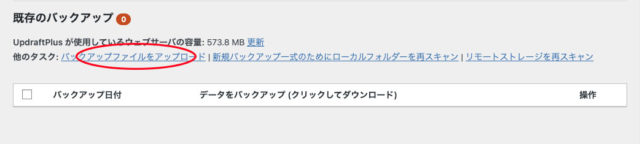
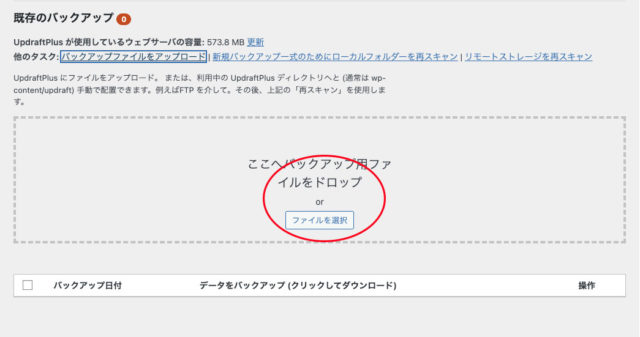
2. 復元の実行
一覧に表示されたバックアップに対して「復元」を実行し、
- データベース
- プラグイン
- theme
- アップロード
- Other
すべてを選択して処理を進める。
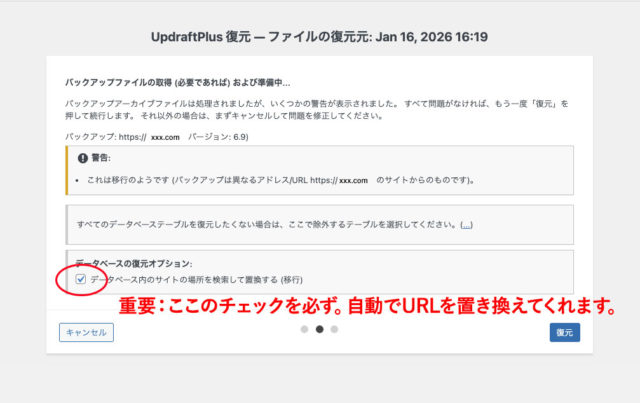
データベースの復元オプションに必ずチェックをいれる。新しいサイトへのURLの置き換えが必須。
復元完了後、新サーバー上で旧サイトと同一構成のWordPress環境が再現される。
summary
UpdraftPlusを利用したサイト移行は、
- 容量制限に左右されない
- FTP手動作業が不要
- 再現性が高い
In that sense、他の「簡単移行」系手法と比較して安定性が高い。
サイト移行を予定していない場合でも、障害対策として導入価値の高いバックアッププラグインである。